Profile Settings
The Profile settings can vary depending on the settings of the steaming behavior and the settings in this dialog itself.
The settings should be modified by advanced users only!
Disable GNG settings
With this option, you disable all setting requests of the G-Core Server to the camera.
Cameras of different manufacturers react at different speeds to requests for changes and queries. Some cameras are not suitable for quickly changing the resolution, GOP structures, codes and qualities. If you activate the function, the necessary communication with the camera is reduced to a minimum. You will then only see images in the quality and resolution in G-View that correspond to the set camera values.
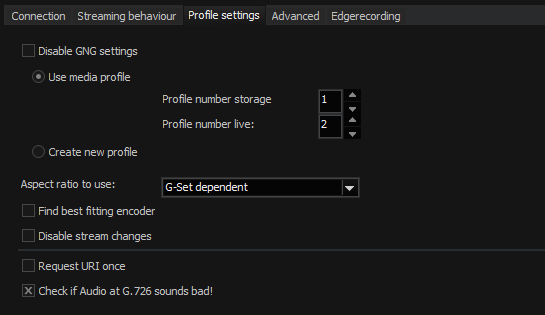
Use Media Profile and Create New Profile
In order to query images from a camera, you need "profiles". For each stream (recording and/ or live), there must be a separate profile. These profiles either already exist (then select Use media profiles) or they must be created (Create new profile).
By default, an attempt is made to use the existing profile (profile number storage = 1).
Bosch cameras automatically assign profiles 1 and 2 to H264. Profile 3 is reserved for JPG.
Using this profile an attempt is then made to change the settings according to the requirements for resolution, type of code, quality and frame rate.
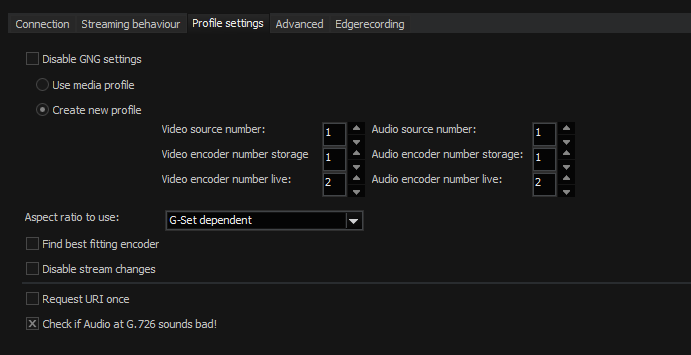
A profile is always composed of video source and video encoder. Here you have the opportunity to compile the profile freely.
Disable stream changes
If you wish to switch from permanent recording at 5 FPS to 25 FPS when an event occurs, several cameras require up to 10 seconds for this transition. During this time, no images are streamed from the camera to the server. This means, that during the time of the event you will have no images.
If you use a camera that exhibits these deficits, select the option Disable stream changes to disable general stream control.
If this option is enabled, only images in the set resolution and quality of the camera are streamed from the camera.
Request URI once
For some cameras, activation times are longer than others. This means that when you activate the camera is G-View, it is possible that 2 to 5 seconds can pass before the camera displays the first images. This is due to the slow response times of the camera to the server. Using this option, activation times can be shortened.
Aspect Ratio to Use
Most cameras support a variety of different aspect ratios. For an aspect ratio that does not correspond with the aspect ratio of the sensor, either the upper or lower, or the left or right border will be cropped somewhat.
For instance, if the sensor has an aspect ratio of 16:10, but the user wishes to use a resolution of 640x480, which corresponds to an aspect ratio of 4:3, the image will be cropped somewhat on the right and left. This means that the entire camera scene is not used.
You can freely specify which aspect ratio to use: 4:3, 16:9 and 16:10 are the available aspect ratios.
If you select Camera Sensor Dependent, the aspect ratio of the sensor is read out. You can thus be sure to always see the maximum recorded scene in the viewer.
For G-Set Dependent the selection is taken from the settings of the corresponding quality profile. If you set a desired resolution of 1920x1080, then an attempt is always made to use a stream with an aspect ratio of 16:9.
The default setting is Use all types of aspect ratio. Here the closest matching resolution is sought for the resolution set in the quality profile. The advantage of this procedure is that you will at least have a similar resolution, even if it is cut off somewhat.
Check if audio at G.726 sounds bad!
The G.726 standard does not specify whether a byte is decoded from 0-8 or 8-0. This can result in jerky sound. If the sound of G.726 sounds jerky check this box.