Timer
Timers are used to measure time intervals. Once the set time has elapsed, a signal is issued. With G-Core, timers are used for time-dependent activity control: Once the set time has elapsed, an action is triggered.
The timer operation can be triggered one time only or periodically. For a periodic timer trigger, it is also possible to add a time-dependent control (embedded ticker).
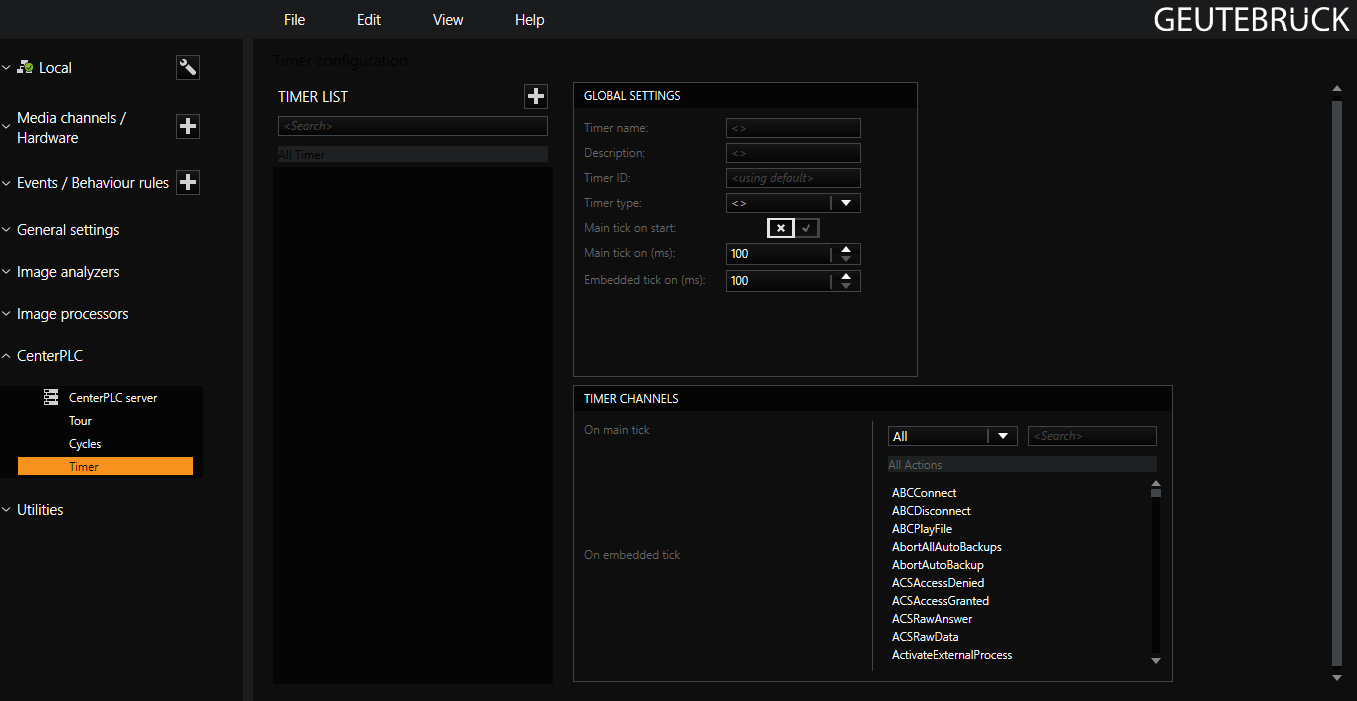
The timer dialog consists of three parts:
- Timer List
- Global Settings
- Timer Channels
Creating a New Timer
If you want to create a new timer, click the + icon in the timer list. This generates a timer with a sequential number and the timer is activated.
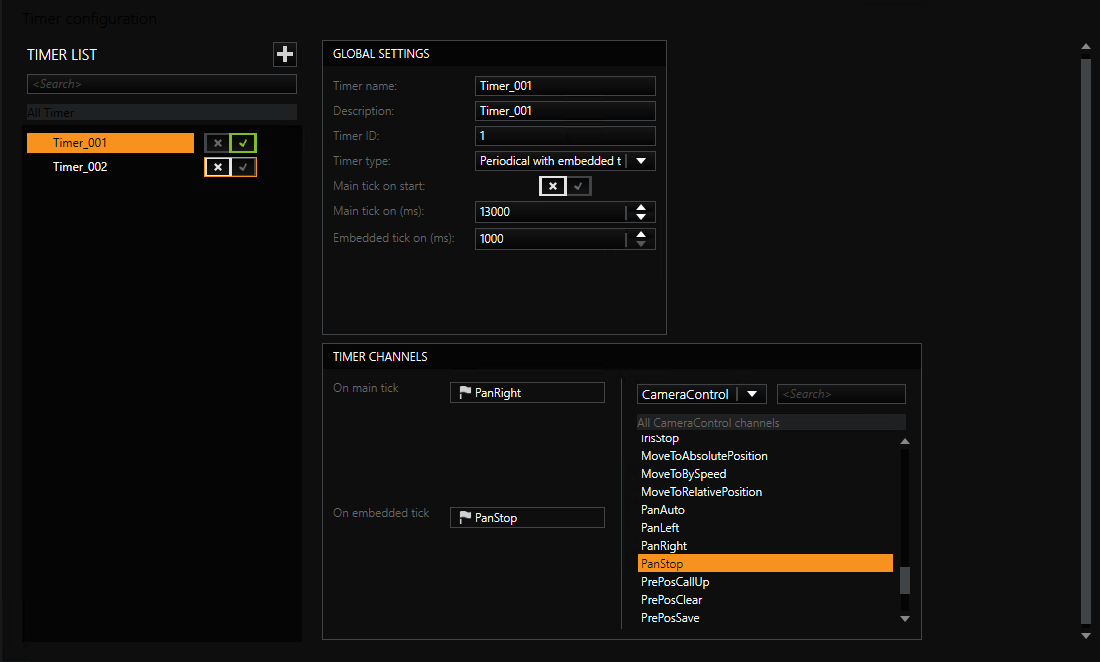
Now go to the Global Settings.
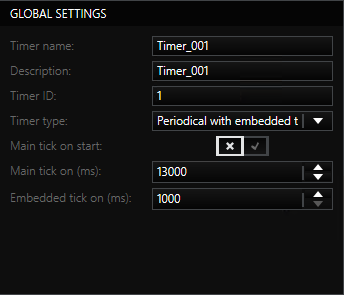
Also assign (optionally) for Timer Name a name and under Description a short but meaningful description of the timer.
The Timer ID is the serial number of the newly created timer. However, you can assign your own number.
Under Timer Type you must specify what type of timer you want to create. Three types of timers are available:
|
Timer |
Description |
|
|---|---|---|
|
Once |
A one-time timer |
After the expiration of the configured period of time, the one-time timer starts the action set under Timer Channels. If the trigger should trigger again, it must be restarted. |
|
Periodical |
A periodic timer |
After the expiration of the configured period of time, the periodical timer starts the action set under Timer Channels. The set time then begins to count down again from the beginning. The timer does not need to be restarted. |
|
Periodical with embedded ticker |
Periodic timer with an embedded timer |
After the expiration of the configured period of time, the periodical timer with embedded timer starts the action set under Timer Channels at On main tick. The set time then begins to count down again from the beginning. The timer does not need to be restarted. |
What are the timers for? What can you do with them? The applications are broad. The one-time timer, for example, is perfect for testing the system. The periodic timer can in some cases be used to replace a number of event configurations that would have been necessary to achieve the same results. And the periodic timer with embedded timer can be used, for example, to switch a camera that requires a restart after the switchover.
Whenever timed sequences play a role, the timer is the first choice. (In our above example configuration we have chosen a periodic timer with embedded timer that triggers an action every 13 seconds, and then, one second later, starts a second action).
After you have decided which timer you need, you should decide whether
- The timer should start immediately (then enable the setting Main tick on start or whether
- The timer should expire after a certain amount of time (then set Main tick on (ms).
If you have selected the periodic timer with time control, in addition to the setting above, you must also configured the embedded timer using Embedded tick on (ms).
Now proceed to the Timer Channels dialog. There you assign the desired action that will be triggered when the timer (and the embedded timer) expires.
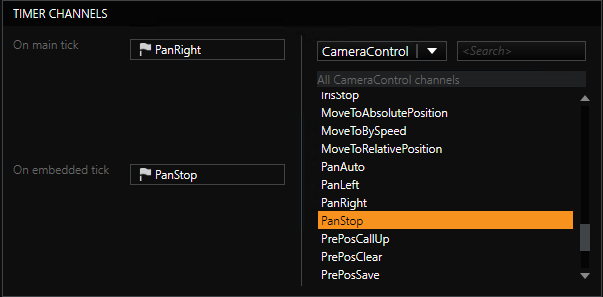
To do so, select an action from the action list and drag it with the mouse onto the corresponding field (On main tick or also On embedded tick). In our configuration, the camera would start to move to the right every 13 seconds and then stop 1 second later.
The configuration of timers seems simple, but can be difficult. Our example configuration works well. But it would be worth considering whether you should proceed in a different manner: Let us assume that the timer is normally switched on and off using a button. The user has pressed the button by mistake and stops the timer by pressing it again immediately. This would stop the timer, but the camera would continue to move to the right if the timer shutoff was performed within the first second. This is definitely not the desired effect.
For this reason, for the periodic timer with embedded timer in our example, it owuld be better to set the main tick to 13 seconds and PanStop, and the embedded tick to 12 seconds and PanRight. The same functionality results, but when the timer stops, the camera stops as well!