Pattern Configurator
 If you click on this button, the ANPRPatternConfigurator will open, which allows you to create country templates (patterns).
You can also find the ANPRPatternConfigurator in the G-Core directory in the subdirectory ANPRDATA under the name PatCfgrG.exe.
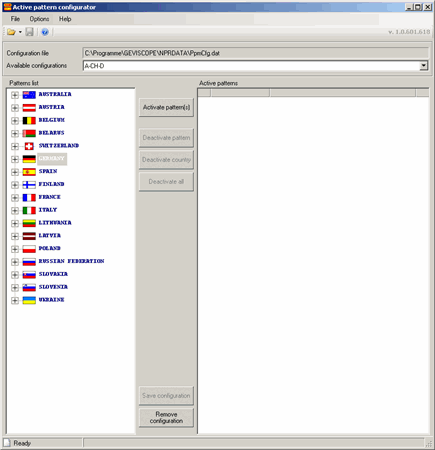
Before you begin working with the pattern configurator, you must stop the service ANPR. If you do not stop this service (and restart it subsequently) the stored patterns CANNOT be accepted!
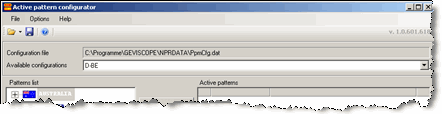
Click File and then Open and open the file PpmCfg.dat. This will load the existing patterns into the editor.
The available patterns can be seen and edited using the drop-down menu Available Configurations.
Creating a new pattern
If you want to create a new pattern, proceed as follows:
In most countries, the look and type of number plate has changed over the years. For the listed countries, these changes have been incorporated. We show in our example the number plate representation for France:
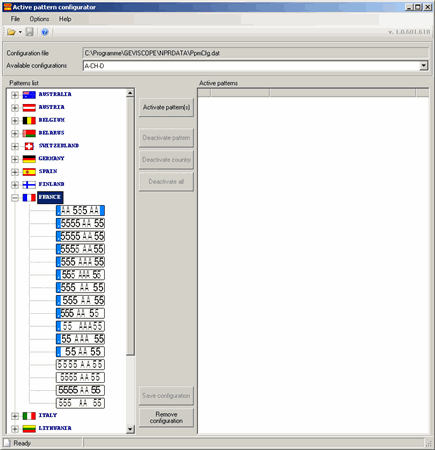
You can now accept all types in your pattern, by selecting the country and clicking on the button Activate Pattern(s) or also include individual types in your pattern.
If you want to show only one number plate type, open the Countries Display, select the type and click Activate Pattern(s).
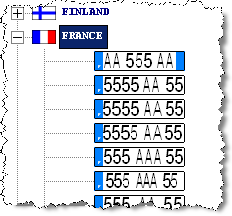
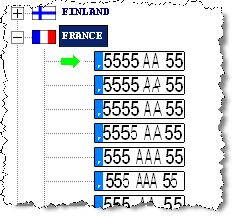
The selected number plate type is added to the pattern.
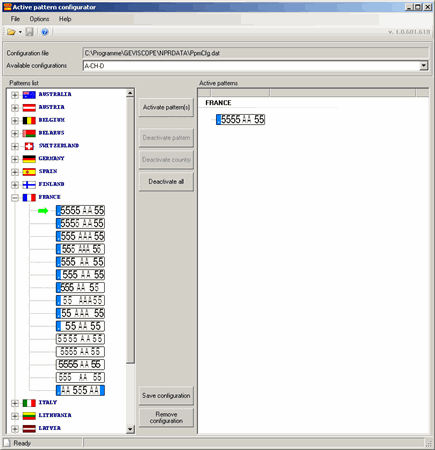
For example, we wish to create a pattern as it would be of interest in the region of Aachen (Germany): German and Belgian number plates.
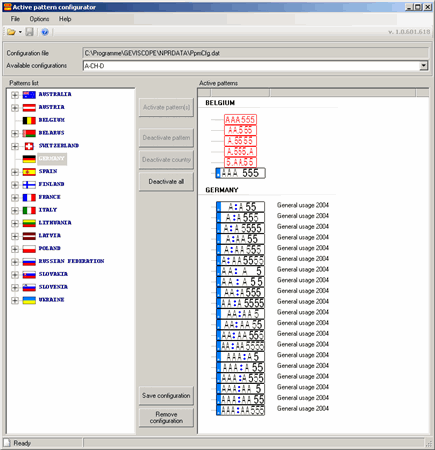
To do so, select Belgium in the number plate list and click on Activate Pattern(s). Then do the same for Germany.
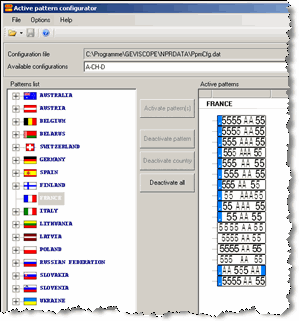
All the number plate types of both countries are now in the list of active number plates:
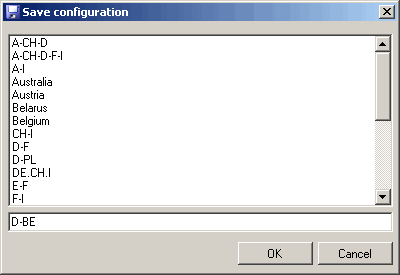
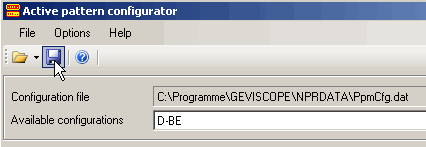
Click the button Save Configuration and enter a name for the pattern in the New Configuration dialog, here: D-BE. Confirm the entry with OK.
As you can see, the new pattern has been added to the list of available configurations.
Click on the symbol to save the new configuration file.
Remember to restart the service to let the changes take effect. The pattern will then be available.
Deleting a pattern
You can always delete an existing configuration. To do so, stop the service, load the configuration file and select the pattern you want to delete (using Available Configurations).
Now click on Remove Configuration. The selected configuration is deleted. Save the configuration file and restart the service.
Set up of the image
Follow the recognition of the number plates in the live image and pay attention to the weight of the result (weight preferably 89–91 or higher) and whether or not the number plate is correctly recognized. Use the slide controls to set up the image so that the weight is as high as possible and the correct number plate is displayed.
Here it is not important that you can see and recognize the number plate well. Only the result counts!
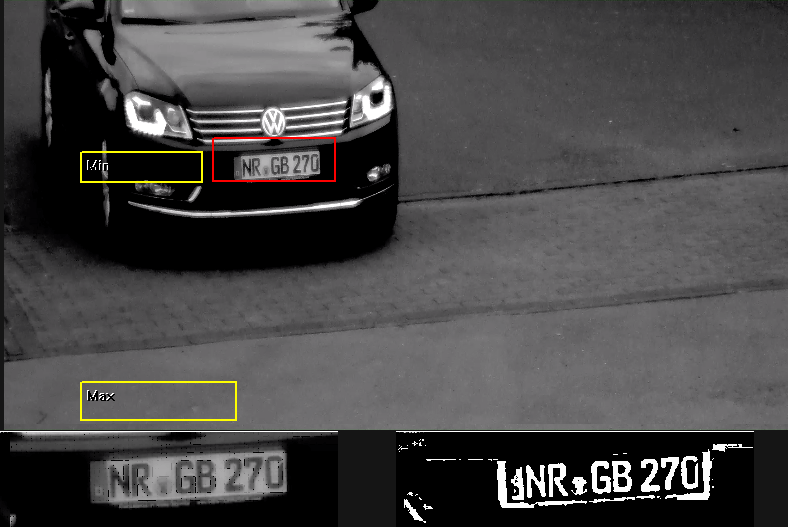
In the picture you also see the two yellow frames for setting the minimum and maximum number plate size. Both should be somewhat larger than the actual number plates that will appear in the picture. The configuration will work best if you position a vehicle in different locations in the camera picture and set the frame.
What exactly do the yellow frames do? They specify a (size) measurement area, within which the number plates are searched for. The arrangement of the frames can be chosen freely. It is not about a perspective view and an area, but rather only about a minimum/maximum comparison value. The actually recognized number plate is framed in red.
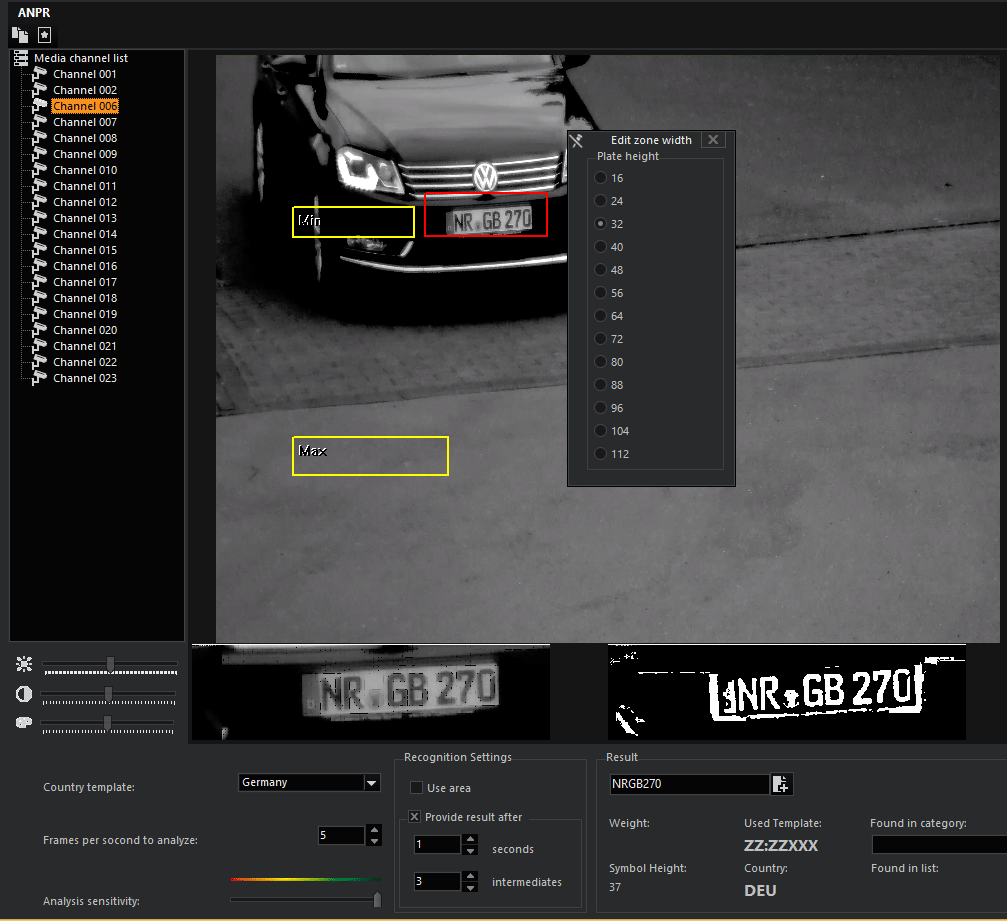
Set the size of the number plate as follows
Right click in one of the yellow frames and specify the size in the dialog. Set the other frames in the same manner. The sizes are specified in pixels. Depending on the setting, the size of the frame displayed in the image changes. A setting that is too small may interfere with proper recognition. A setting of the frame that is too different, such as 16/64, will also lead to poor recognition rates.
Advanced settings
 Clicking on the symbol in the toolbar opens the advanced settings.
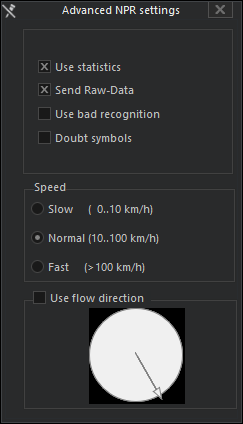
You will find the following settings in this dialog:
|
Parameter |
Description |
|---|---|
|
Use statistics |
ANPR performs its own internal statistics regarding the recognized number plates, as a sequence of recognition procedures are performed. When this function is activated, ANPR attempts to integrate these statistics into the recognition. The default setting is on. |
|
Send RAW-Data |
The ANPR continually sends RAW data when this function is activated. The default setting is off. |
|
Use bad recognition |
Due to wear or dirt, number plates can be difficult to read. An example: instead of a |
|
Doubt symbols |
For a low weight of the recognition, it can occur that a * is entered instead of a character. When you activate this function, the last recognized character is set for the placeholder *; this may not be correct, however! |
|
Speed |
|
|
Slow |
For speeds from 0 to approx. 10 km/h |
|
Normal |
For speeds from 10 to approx. 100 km/h |
|
Fast |
For speeds > 100 km/h |
|
Use flow direction |
|
|
|
You can move the arrow with the left mouse button and set the direction from which the vehicles come. In our example this is from the left at a slant. This setting can be helpful for difficult situations. Normally, however, it is not needed. The default setting is off. |
 only the following character is present:
  .
. 