The category list
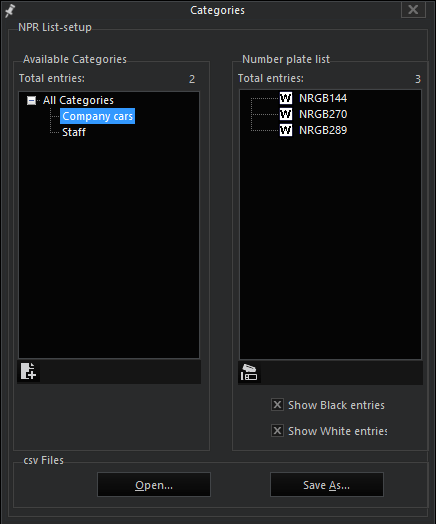
 Clicking on the symbol opens the list dialog. The existing categories and the recognized number plates are compiled in the list. The icons of the number plates indicate whether the plate is in the Black List or the White List. An empty icon is present for number plates that are not assigned.
Adding a category
Right click in the list of the categories and then click on Add category. A dialog opens. Enter the name for a category and confirm it with the return key.
Editing a category
Click on a category with the left button. You can now edit the name.
Deleting a category
Right click on a category and then click on Delete category in the pop-up menu.
You can also edit the number plate list. Select a task:
|
Task |
Description |
|---|---|
|
Add Number-Plate to list |
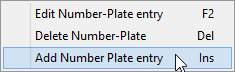
Right click in the number plate list and then click on Add Number Plate to list in the pop-up menu.
|
When entering new number plates, you can also use so-called wildcards. You can use an asterisk (*) or a question mark (?). Asterisks represent a character string of any length, question marks only represent a single character. It is possible to combine the two.
Example For the template ZZ:ZZXXX (two letters followed by two letters and then 3 numbers), a white list entry for our company cars could be: NRGB*, i.e. all vehicles with a number plate from the district Neuwied (Germany), represented by the first two letters, NR, followed by the letter combination GB and any number combination thereafter. If we specified NRGB6*, then only the vehicles with the number plates NR-GB 600 to 699 would be included in the white list.
The characters string NRGB66? would only allow 10 vehicles, namely NR-GB 660 to NR-GB 669.
Using these methods, it is possible to create various usage models. For in-stance, all non-local vehicles could be sorted out.
|
Task |
Description |
|---|---|
|
Edit Number-Plate entry |
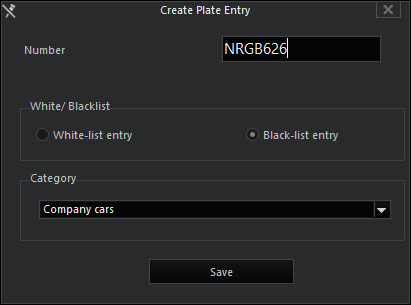
Right click on a plate in the number plate list and then click on Edit Number Plate entry in the pop-up menu. The Edit Plate entry dialog opens. Modify the plate and or the assignment to a list [White list or Black list]. If you wish, you can also assign the vehicle to a different category. Confirm your entries by clicking on Save. |
|
Delete Number-Plate |
Right click on a plate in the number plate list and then click on Delete Number Plate in the pop-up menu. |
Import and export of number plate lists
A click on the Open button makes it possible to import number plate lists in tab, comma or semicolon separated CSV files. As these files contain a number of rows and columns, the structure of the CSV file must be made known to the program.
Under Determined separator, the separator used is displayed, e.g. a semicolon (;).
You then specify which information is found in which column. In our example:
- The specification of the number plate is in column 1 (Column with number plate string)
- The (available) black/white list specifications are in column 2
- The categories are in column 3 (in the example, these are empty).
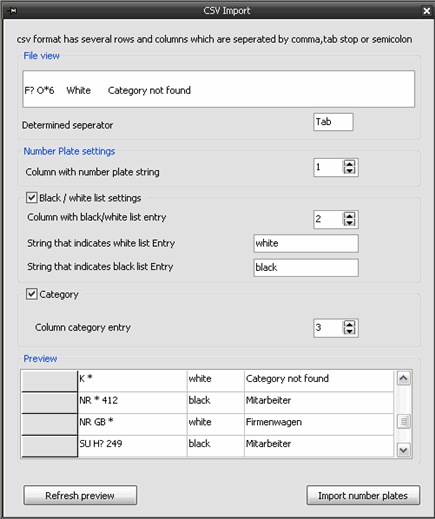
Click next on Refresh preview and check the display. If everything is OK, click Import number plates to import the information.
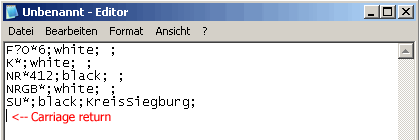
Note: If you wish to prepare number plate lists in a CSV file, you must pay attention to the following:!
- Do not use titles or comments
- Close the last line with the separator you are using
- Press the ENTER key
This is necessary because the program looks for the last carriage return character and cuts off the file there when importing. If you do not follow this procedure, the file will not be imported properly!
Here an example for a file written in the editor and separated with semicolons:
Event control
When configuring an event that is based on ANPR actions, enter the “NPR recognition” action under Start by. Select the channel that should start the event in the action dialog.
Please enter the Event run time under StopBy.
License
The number plate recognition ANPR requires a license. For the desired media channels, please enter the acquired licenses using the license manager in G-Set.