Connection
List of Connections
The list of connections contains existing connections to the G-SIM servers. Connection records that are connected to G-SIM servers are marked with a green check icon. Connection records that have unsaved changes are marked with a diskette icon.
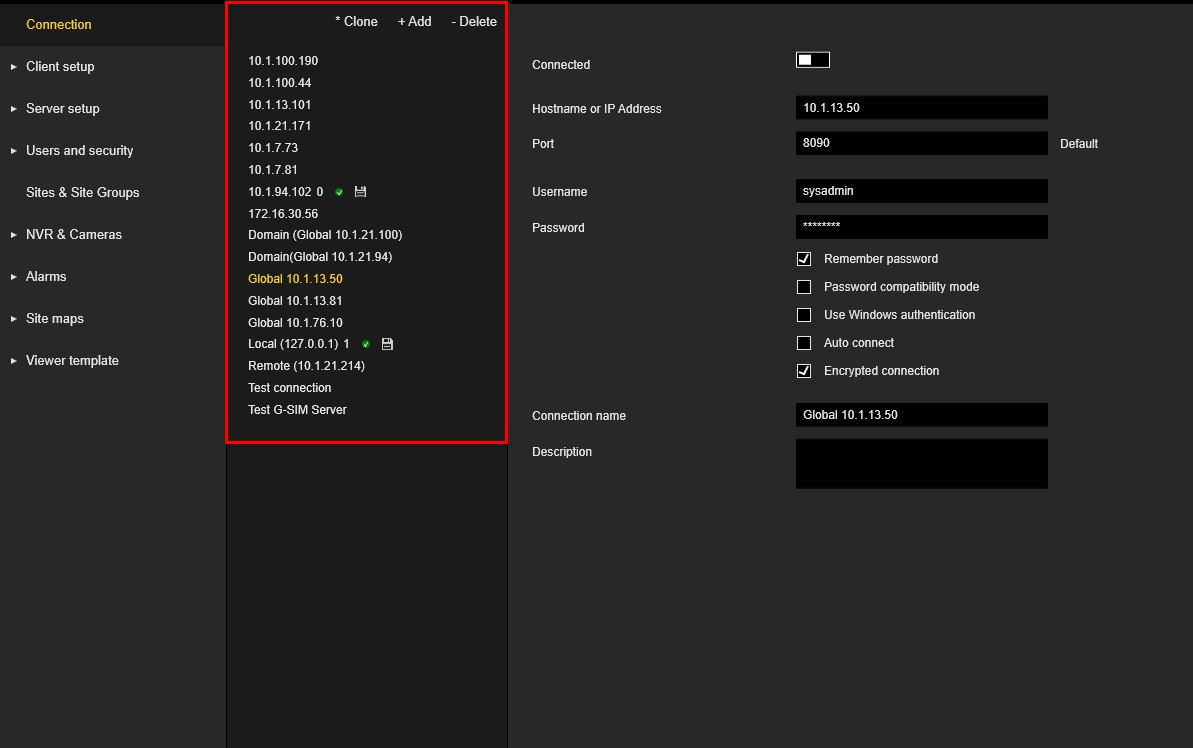
Connection View
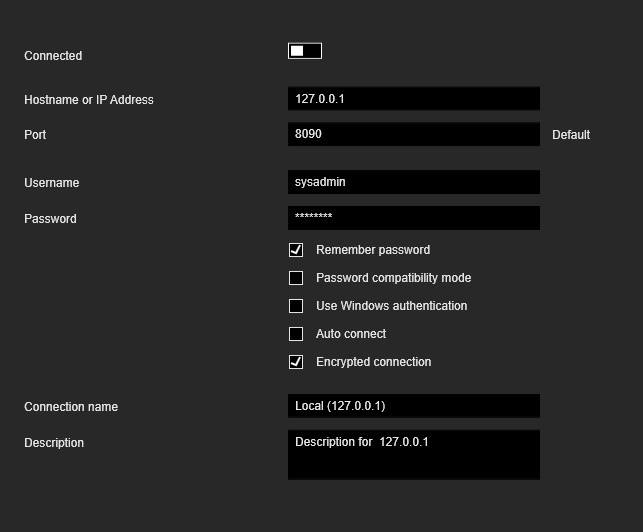
The Connection view contains settings of the selected connection.
|
Setting |
Description |
|---|---|
|
Hostname or IP Address |
Contains the address of the G-SIM server. This field is mandatory. |
|
Port |
Contains the port of the G-SIM server. This field is mandatory. Click the Default button to reset port to the default value. |
|
Username |
Contains the name of the G-SIM user. |
|
Password |
Contains the password of the G-SIM user. |
|
Remember password |
Select this checkbox to save the password. |
|
Password compatibility mode |
Select this checkbox for connection to the old G-SIM server (<V8). |
|
Use Windows authentication |
Select this checkbox to use Windows user as G-SIM users. G-SIM user should be configured for this mode. If this checkbox is selected, the name of the user who started the Management Console appears in the Username field. The Username and Password fields are deactivated. |
|
Auto connect |
Select this checkbox to automatically connect to the G-SIM server when the Management Console starts. |
|
Encrypted connection |
Select this checkbox to encrypt the connection between the Management Console and the G-SIM server. G-SIM server should use the same setting to be able to establish the connection. |
|
Connection name |
Contains the name of the connection. This name will be used in the list of connections and list of the connected G-SIM servers. |
|
Description |
Description for the connection. |
Connect / Disconnect to the G-SIM Server
If the connection view has no validation errors, the Connected slider button is enabled.

The administrator can click the slider to establish the connection to the G-SIM server.
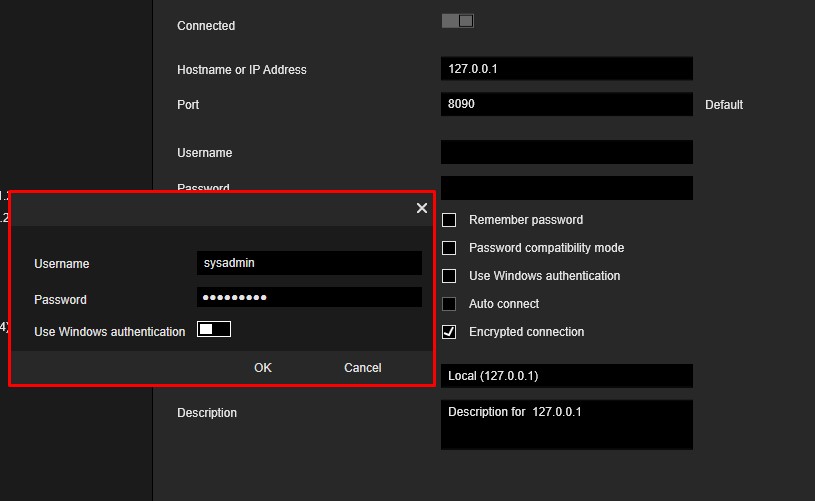
If the Remember password check box is not selected, a dialog box for entering connection information appears.
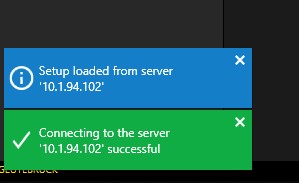
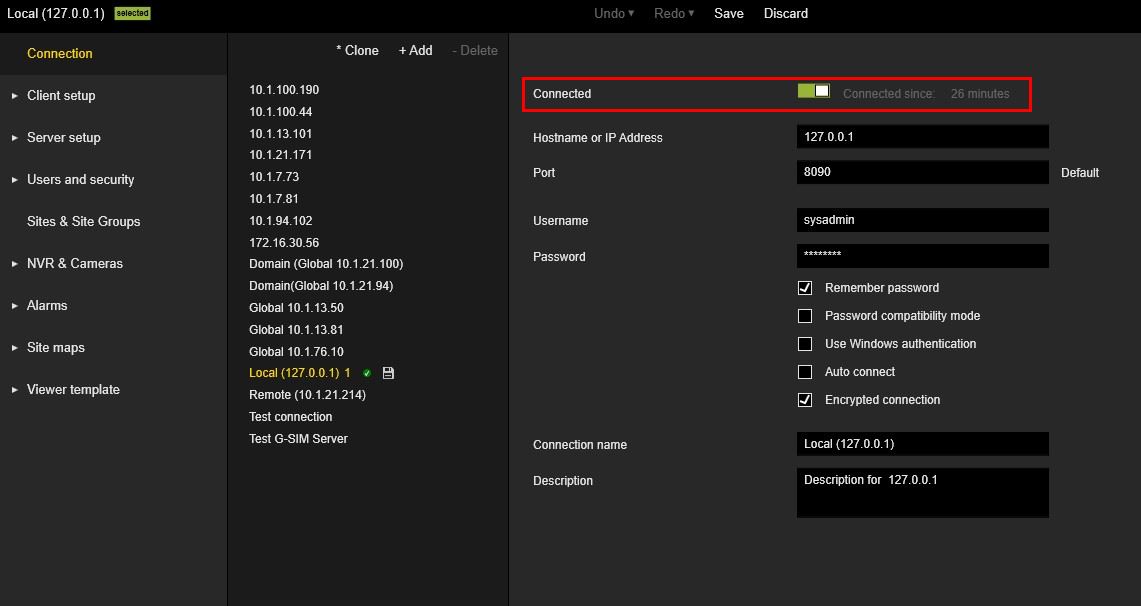
If the connection to the G-SIM server is established successfully, the slider button changes its state to active, the label Connected since and the time specification appears are displayed.

Pop-up notifications are also displayed.
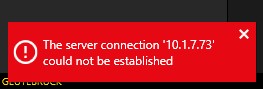
If the connection to the G-SIM server cannot be established, the slider button is inactive and a pop-up notification with an error message is displayed.
After the connection to the G-SIM server is established, the connection settings are not editable.
The main menu items, except the connection item, are only enabled when a connection to the G-SIM server exists.
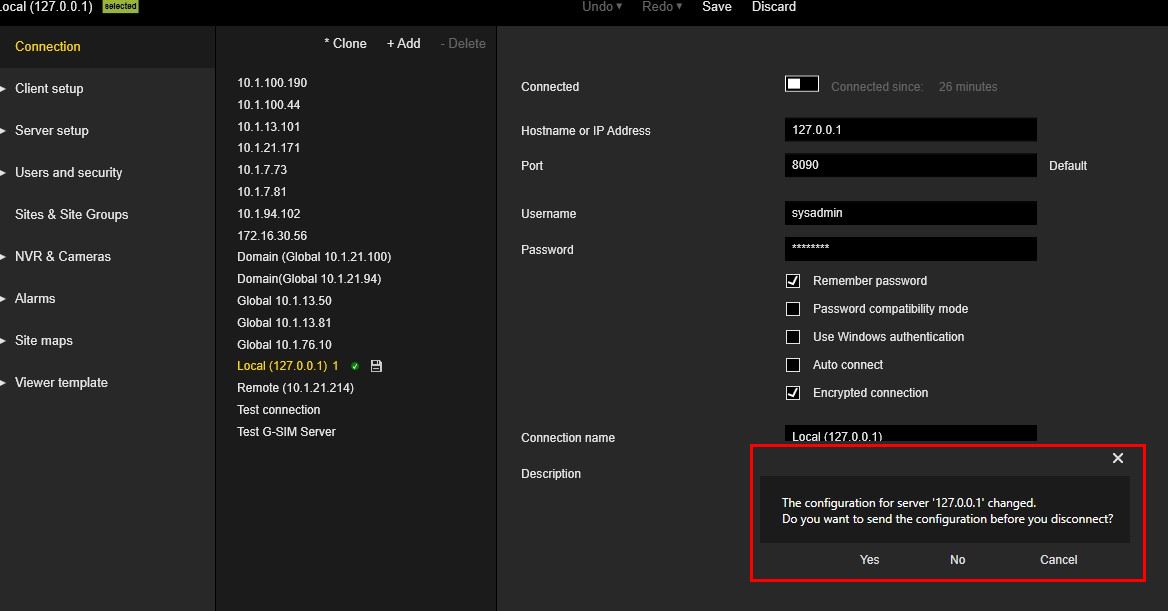
If the administrator tries to close the connection with unsaved changes, a message box appears.
Export / Import G-SIM Setup
After the connection to the G-SIM server is established, the Import and Export buttons are enabled.
To import setup, the administrator should select an existing file with G-SIM setup.
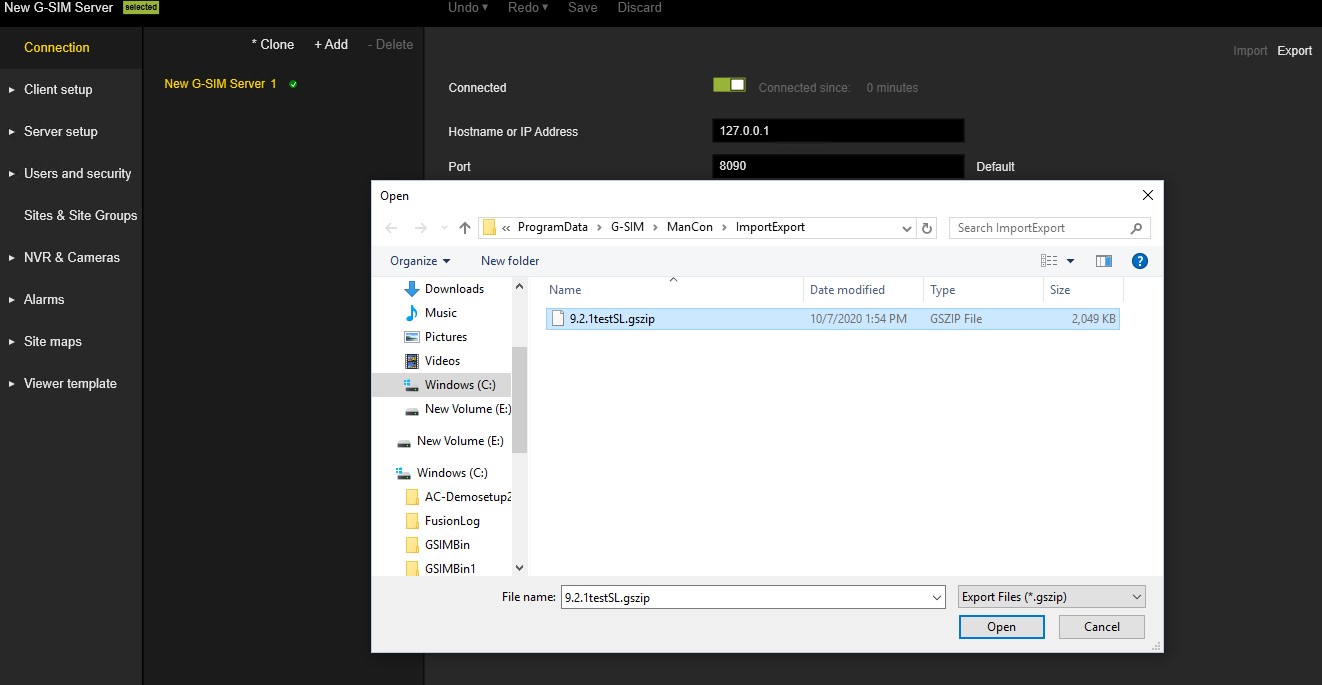
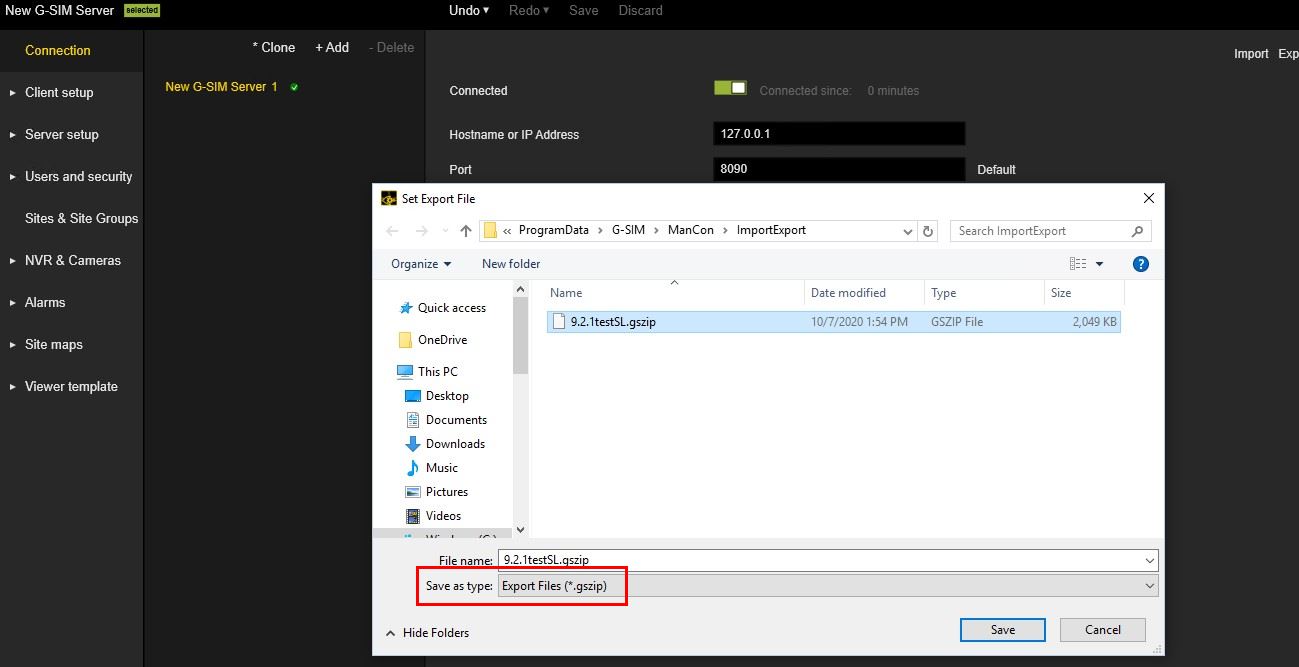
To export the setup, the administrator should select the path where the file is created with the current G-SIM setup.
IMPORTANT: In global environments, the import of an older setup that does not contain the current data state can lead to the deletion of data on other servers (e.g. users, groups, privileges..). Therefore the popup window Attention! You are importing a setup into a global environment. The data might be older than the existing setup and could lead to deletion of data on other servers. Please verify if new data exists which will be overwritten! Do you really want to continue? appears, where you have to click the Continue button to confirm this action.