Handling Alarms
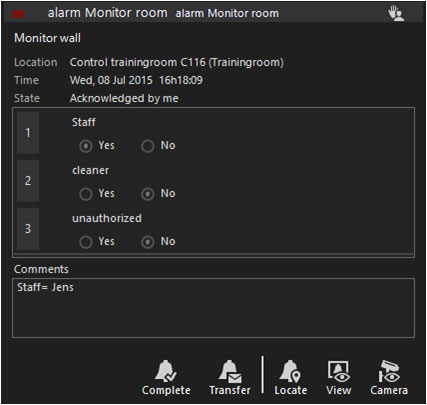
The alarm handling process consists of three steps:
- Taking responsibility for (acknowledging) an alarm.
- Filling in the alarm response.
- Completing the alarm.
Taking Responsibility for an Alarm
Accepting an alarm is the first step you must take in the alarm handling process. Doing so will remove the alarm from other users' New Alarms Lists, and make you responsible for its completion.
There is more than one way to take responsibility of an alarm, the most obvious being to click the Acknowledge Alarm button . Indirect ways of acknowledging an alarm are to view the attached camera in a viewer, or by displaying the attached camera or site on a map. This may be done by dragging and dropping the alarm item onto a viewer or a map, or by using one of the "view" buttons on the alarm card.
Filling in the Alarm Response
Each type of alarm can have its own specific alarm response procedure. You must complete each of the alarm responses in sequence before you can complete the alarm.
The comments field is not required, but users are encouraged to enter any relevant or additional information here.
Completing an Alarm
Once all the alarm handling procedures are completed you will be able to complete the alarm. To complete the alarm, click on the Complete Alarm button. If any of the alarm responses are not filled in, G-SIM will display an error in the comments field.
Alarms not completed within 24 hours of generation will be flagged with a status indicator (See Alarms List).
As much as some people may like believe otherwise, life is not completely predictable. Thus the alarm handling procedure may not always reflect reality. In such cases you might not be able to complete the procedure (and thus the alarm) because there is a missing option at one of the steps.
If that happens, simply choose one of the incorrect options, explain it in the comments section (possibly all in capital letters), and let the administrator know that the procedure must be amended. This last step is critical.
Transferring an Uncompleted Alarm
Sometimes you acknowledge an alarm which you cannot complete (end of shift, insufficient knowledge, etc.). This is done by clicking the Transfer Alarm button and then selecting a user to transfer it to. After a user was selected, the alarm will be moved from the list of acknowledged alarms to the list of new alarms. It will, however, stay visible to you until the other user accepts it, or you take it back (by pressing the Acknowledge button). The alarm will remain your responsibility until it is accepted by the transferred user.
Alarms may be transferred more than once between the same or different users.