Login
-
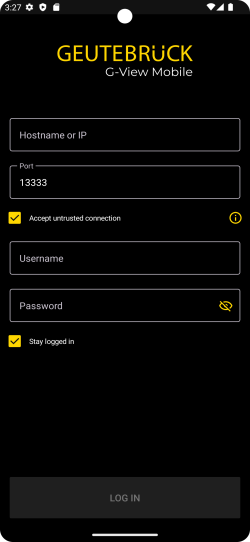
Tap the G-View Mobile App icon. The Login screen opens.
-
Enter the required login data:
Name
Description
Hostname or IP
Enter the Hostname, IP address or FQDN of the G-Core server.
A valid HTTPS certificate is required to use the mobile app. For information on how to create a valid HTTPS certificate, see HTTPS Certificate in the Web API documentation.
If the HTTPS certificate is not supported, the error message Unsupported Certificate - Hostname or IP cannot be verified. Please add the correct certificate (g-help). appears.
Port
Enter the port of the G-Core server.
The default port is 13333.
Accept untrusted connection
Enable this option to allow untrusted connections as well.
If the error message Certificate is not valid - cannot be checked. Please mark the checkbox. appears, you must enable this option.
Username
Enter your G-Core username.
Password
Enter your G-Core password.
Stay logged in
Enable this option to automatically log in with the saved login data when you open the app.
-
Tap Log In.
-
When you log in for the first time, the Terms of Use screen opens. Tap Accept.
The app opens. After the first login, an empty standard screen appears with the note Add new camera. For more information, see Select Camera.