G-Connect
You can use third-party map objects connected to G-Connect in G-SIM using the G-SIM Web API. You can add and configure the map objects in the Management Console and map them to objects on the third-party site. This allows you to display and use map objects such as doors, windows, gates, and similar in the Operator Console. You can display and control current statuses such as access alarms, opening and closing processes, and similar via the respective context menu in the Operator Console.
Requirements:
- G-Connect 6.0.0 or newer
- G-SIM Web API (for further information, see G-SIM Web API documentation)
In the G-Connect view, you can request third-party map object types from G-Connect in order to create and use a third-party map object in G-SIM.
Request Map Object Types
To use third-party map objects connected to G-Connect, request the third-party map object types from G-Connect.
-
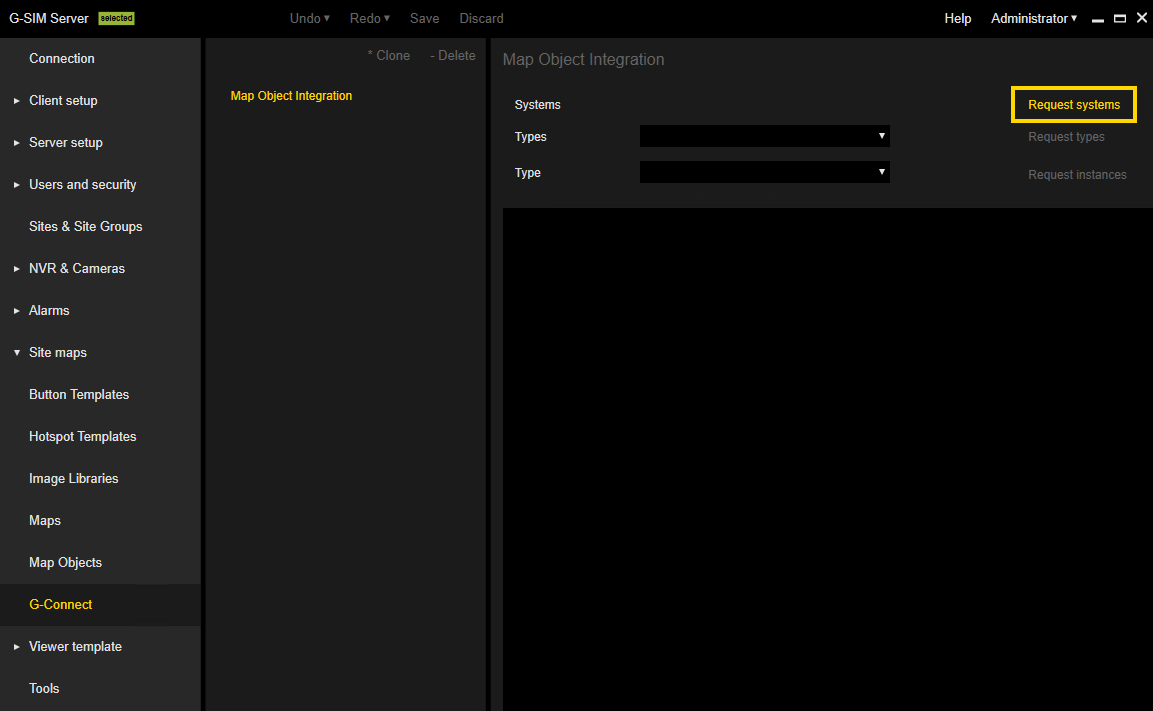
To request the available G-Connect systems, click on the Request systems button.
-
A drop-down menu appears, listing the available systems. Select the system from which you want to request object types.
-
Request the object types of the selected system.
-
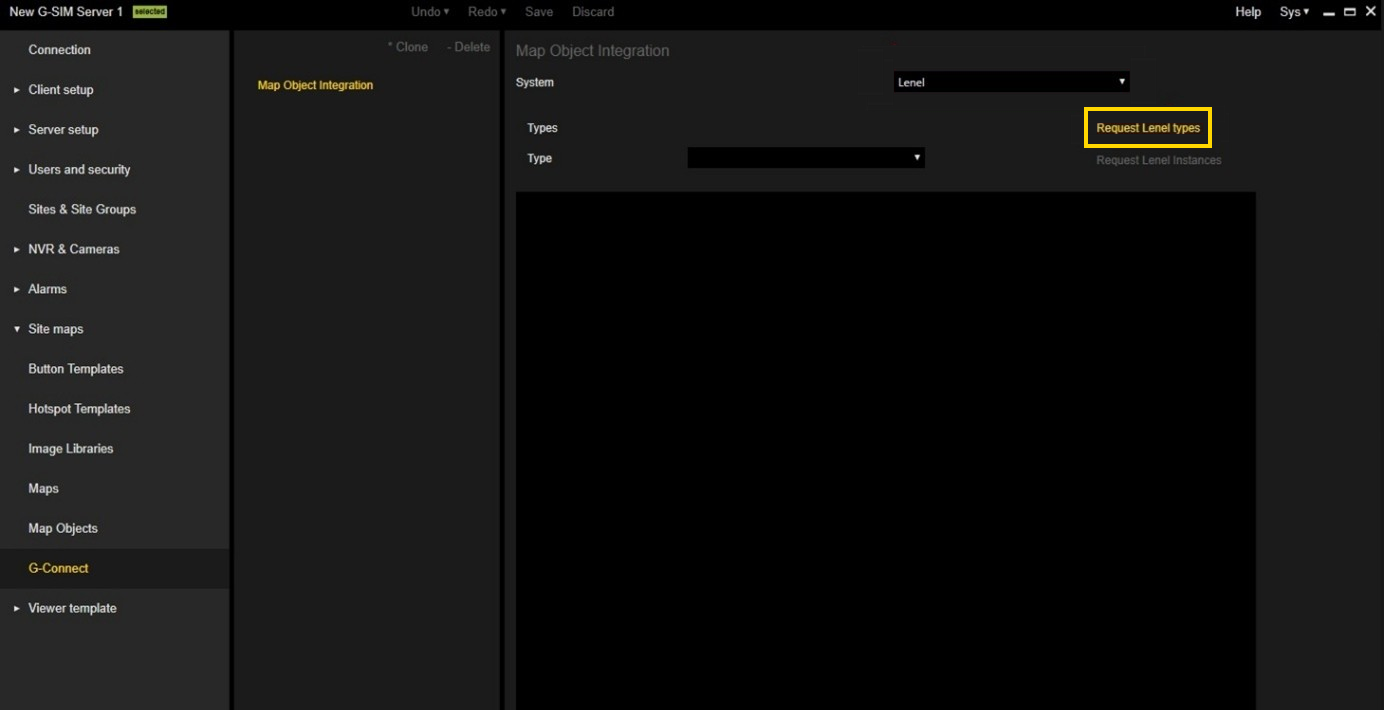
To request all object types, click on the Request xxx types button.
-
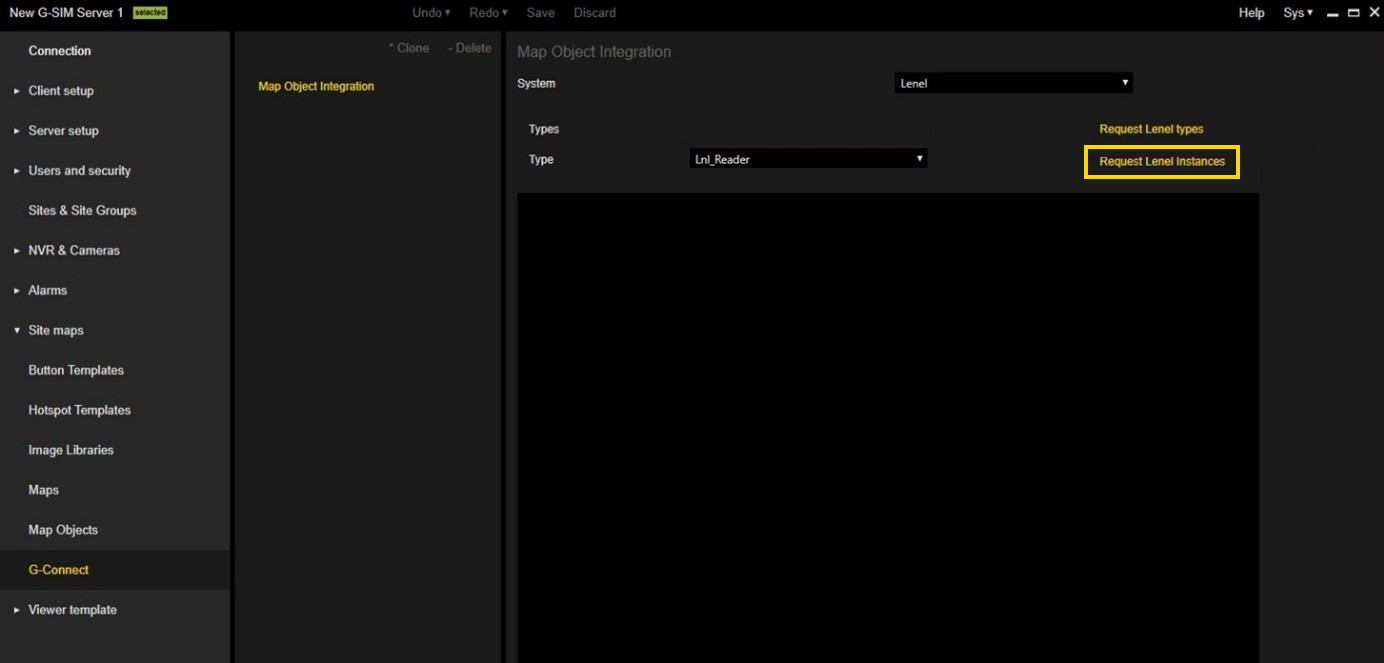
To request specific object types, select the respective type from the Type drop-down menu and click on the Request xxx Instances button.
-
Add G-Connect Map Object
To use the third-party map object types from G-Connect, add a third-party map object type and map object.
-
Navigate to Site Maps > Map Objects.
-
Click on the Add Map Object Type button.
-
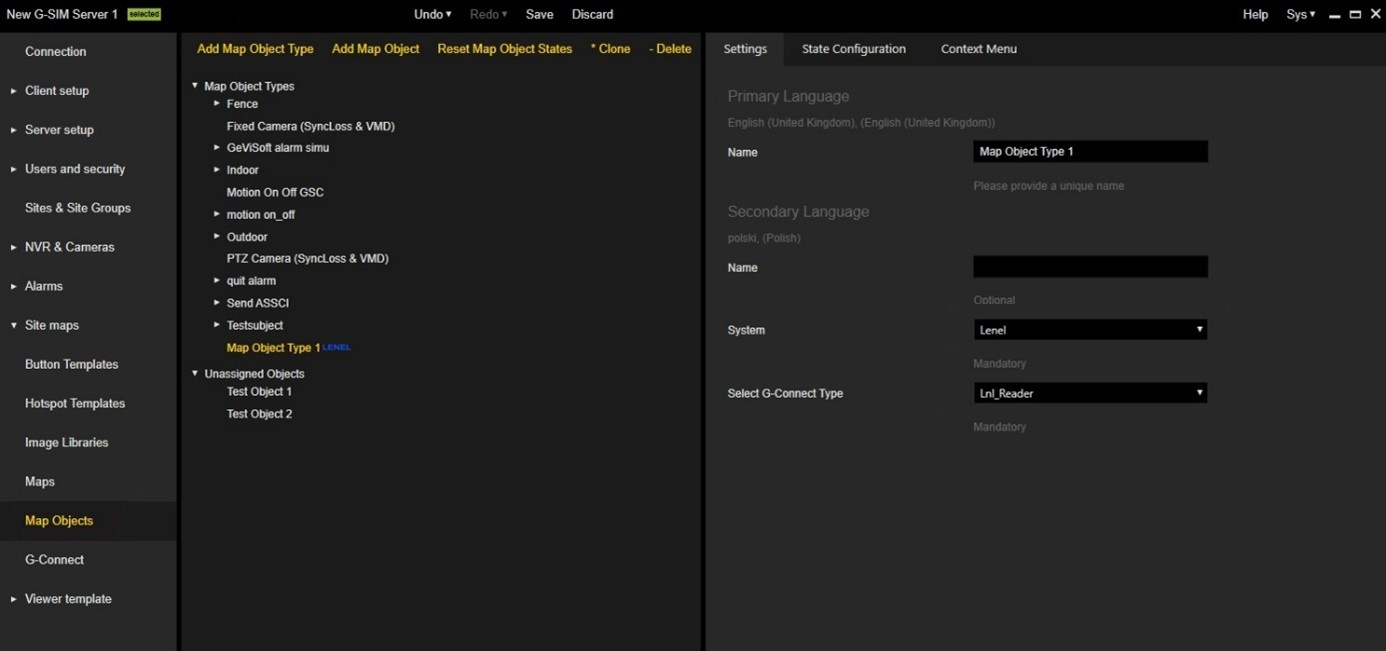
In the Settings tab of the created map object type, enter the name of the map object type in the Name field.
-
Select the respective system from the System drop-down menu.
-
Select the respective type from the Select G-Connect Type drop-down menu.
-
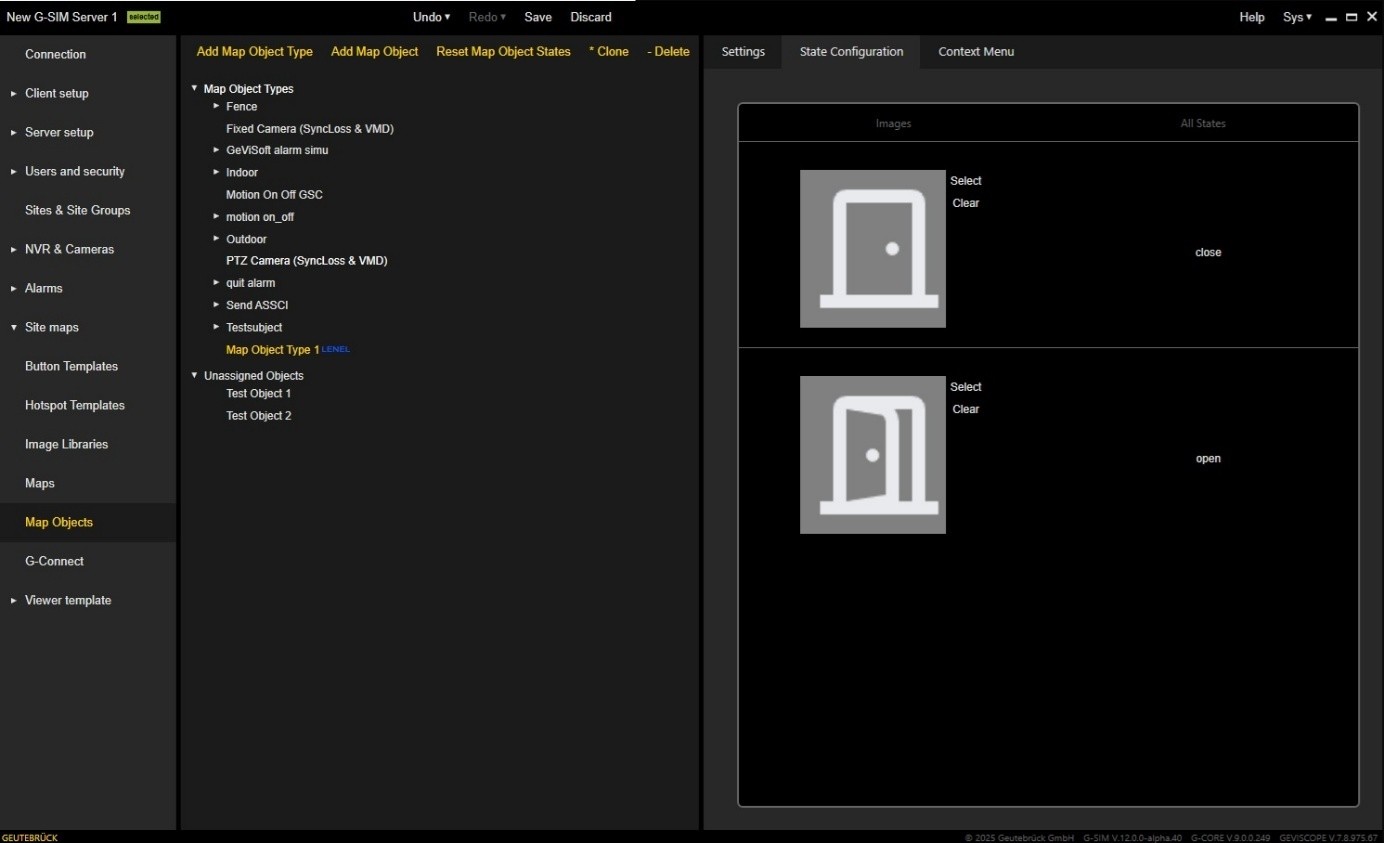
In the State Configuration tab, add images of the map object type for different states.
-
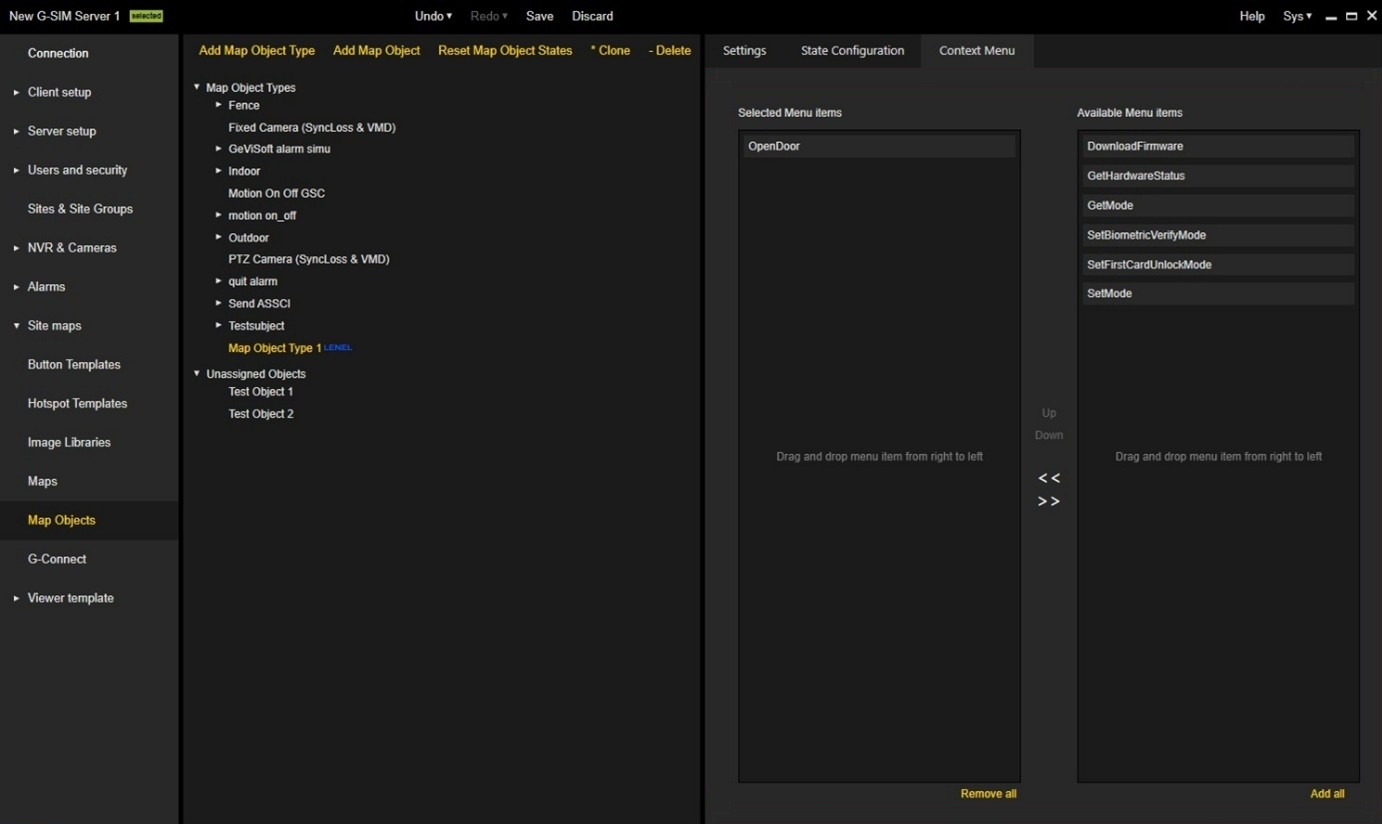
In the Context Menu tab, select the menu items that should be available in the context menu of the map object in the Operator Console.
-
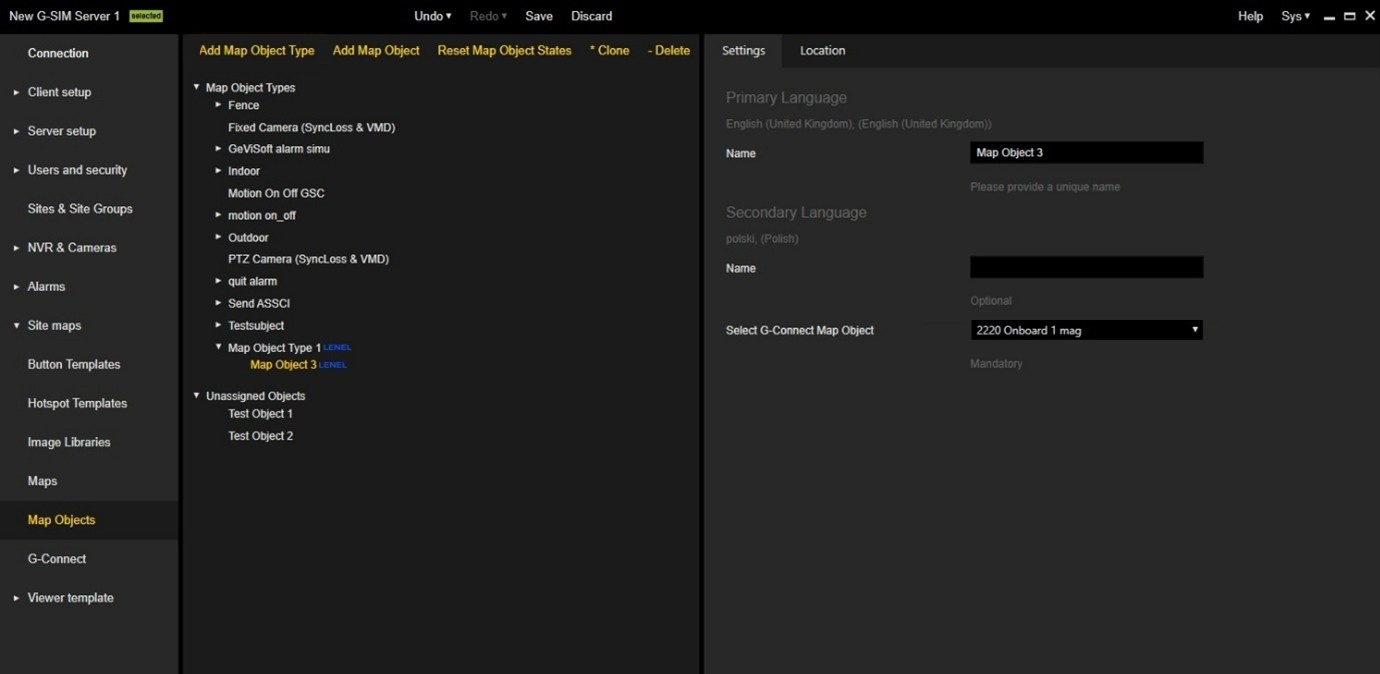
Select the created map object type and click + Add Map Object to add a new map object.
-
In the Settings tab of the created map object, enter the name of the map object in the Name field.
-
Select the respective G-Connect map object from the Select G-Connect Map Object drop-down menu.
Assign G-Connect Map Object to Map
To use the third-party map objects in the Operator Console, add the G-Connect map object to a map.
-
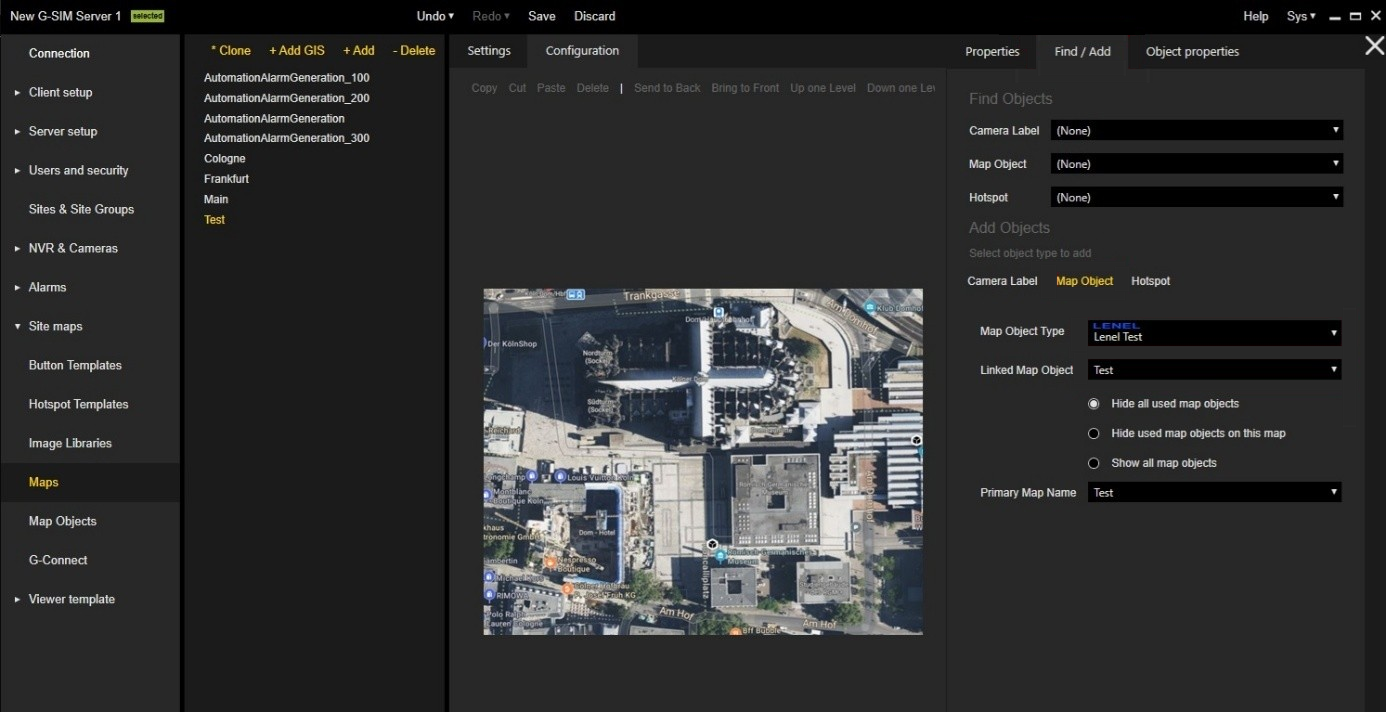
Navigate to Site Maps > Maps and configure a new map. For detailed information on how to create and configure a map, see Maps.
-
Navigate to Find / Add > Add Objects > Map Object.
-
Select the created map object type from the Map Object Type drop-down menu.
-
Select the created map object from the Linked Map Object drop-down menu.
-
Place the map object on the map.
G-Connect Map Object in Operator Console
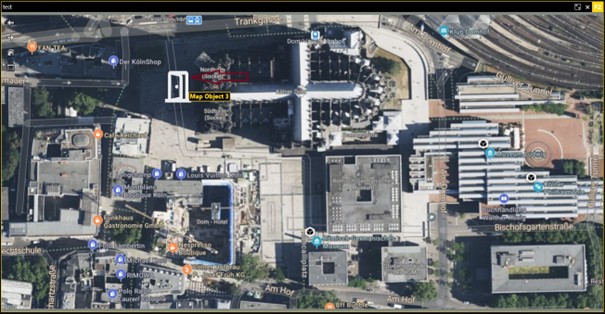
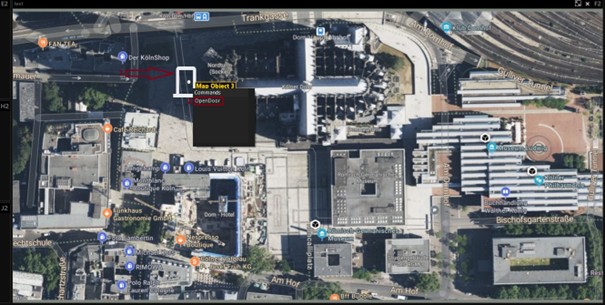
The G-Connect Map objects are displayed in the Operator Console on the respective map to which you have added the map object. Right-clicking on the map object opens the context menu, where the available functions for the map object can be selected.
Example
Clicking on Open Door changes the status of the door, which requires an existing connection to G-Connect.